
Submit BuT notification
This page allows you to independently manage and upload your BuT notices.
“Education and Participation” (BuT) is a German social program that aims to provide children and young people from disadvantaged families with better access to education, culture, and leisure activities. It includes benefits such as school supplies, school lunches, subsidies for school trips and class excursions, and coverage of membership fees for sports clubs or cultural institutions. The goal is to promote social participation and equal opportunities, regardless of the family’s financial situation.
If you are entitled to have the office cover the cost of meals, we need a certificate for education and participation from you. This notification must be uploaded by you or, depending on the federal state or the requirements of the responsible authority, submitted to the school.
This feature is not enabled for all schools and is therefore not always available.
If the menu item does not appear for you, this is not an error. The function is simply not available for your system.

To upload your cost coverage confirmation or notification for benefits from education and participation (BuT), you can use the mobile app or the web portal. Please log in with your adult account. For security reasons, children cannot upload their BuT certificates themselves. Further information about the available features can be found in the Customer Account section.
Please ensure that the notification applies to participation in lunch or to the provision of lunch. A notification issued solely for school supplies, for example, is not sufficient for the reimbursement of meal costs.
Uploading your BuT (Education and Participation) certificate yourself is the simplest, most secure, and fastest way to ensure it’s taken into account when booking meals. The documents are always transmitted in encrypted form, guaranteeing secure and confidential delivery to PCA. Therefore, please use the upload function in the app or web portal whenever possible.
Some cities and municipalities do not allow users to upload their own BuT (Education and Participation) notices. In this case, the corresponding menu item is hidden in both the web portal and the app.
This applies particularly to the cities of Hamburg and Frankfurt am Main. Therefore, if you do not see the menu item, this is not an error, but a requirement of the city or the caterer.
In such cases, please contact the school directly, as notifications must then be submitted through the school. The PCA also relies on the school’s support in this matter. Submitting documents by email is not helpful in these cases and will not expedite the process.
First, open the canteen app and log in with your access data. You log in using the same username and password that you use for the web portal.
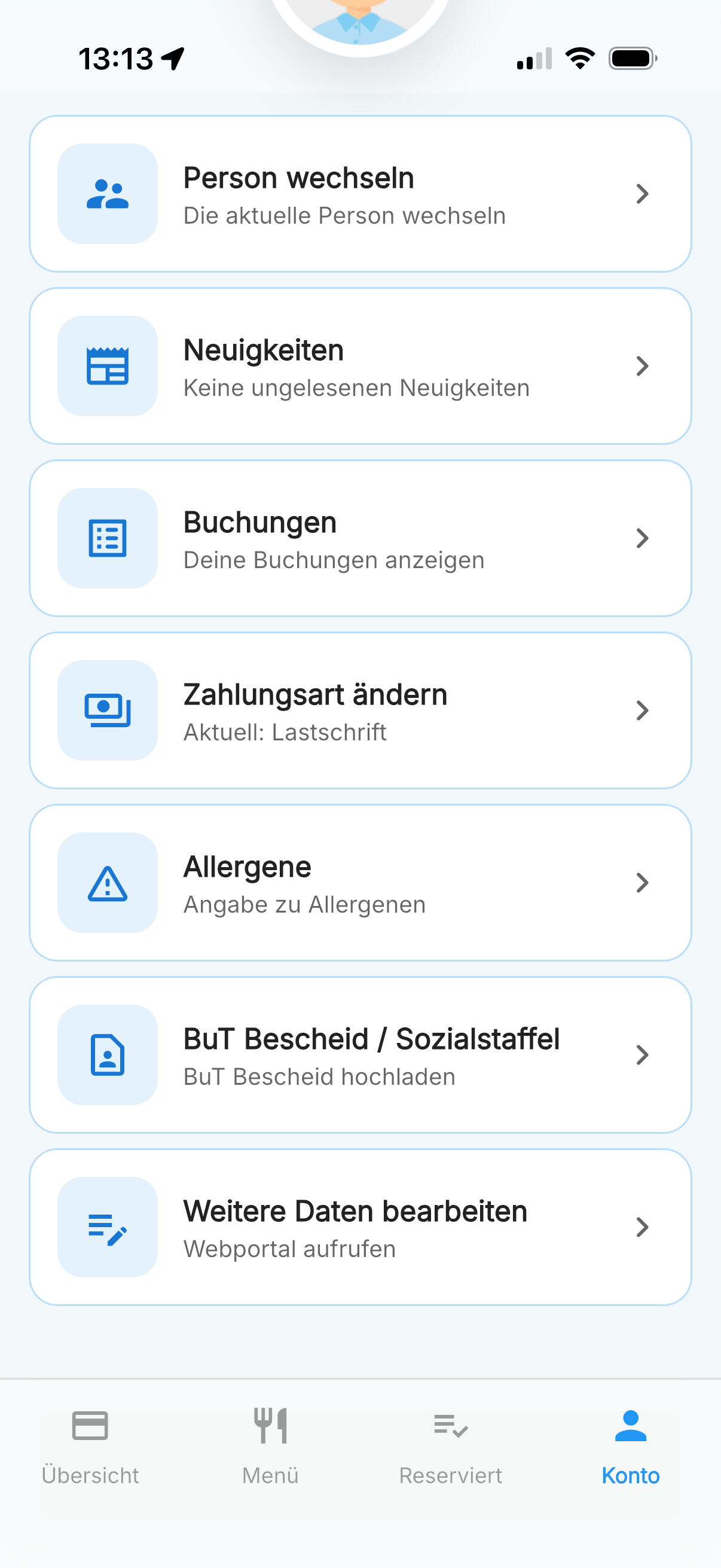
Open the BuT notice/social scale section via Account.
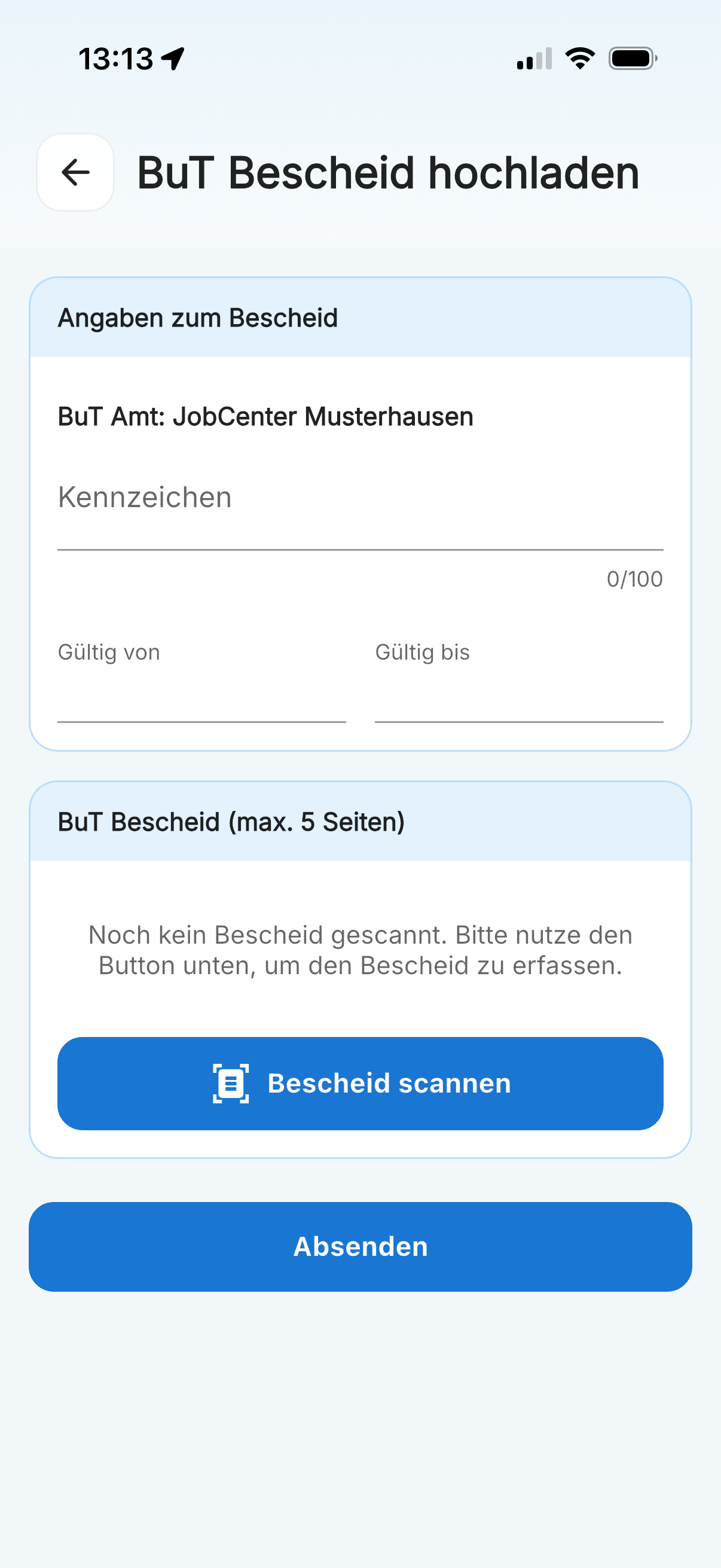
Enter the information from your notification and then start the scanning process.
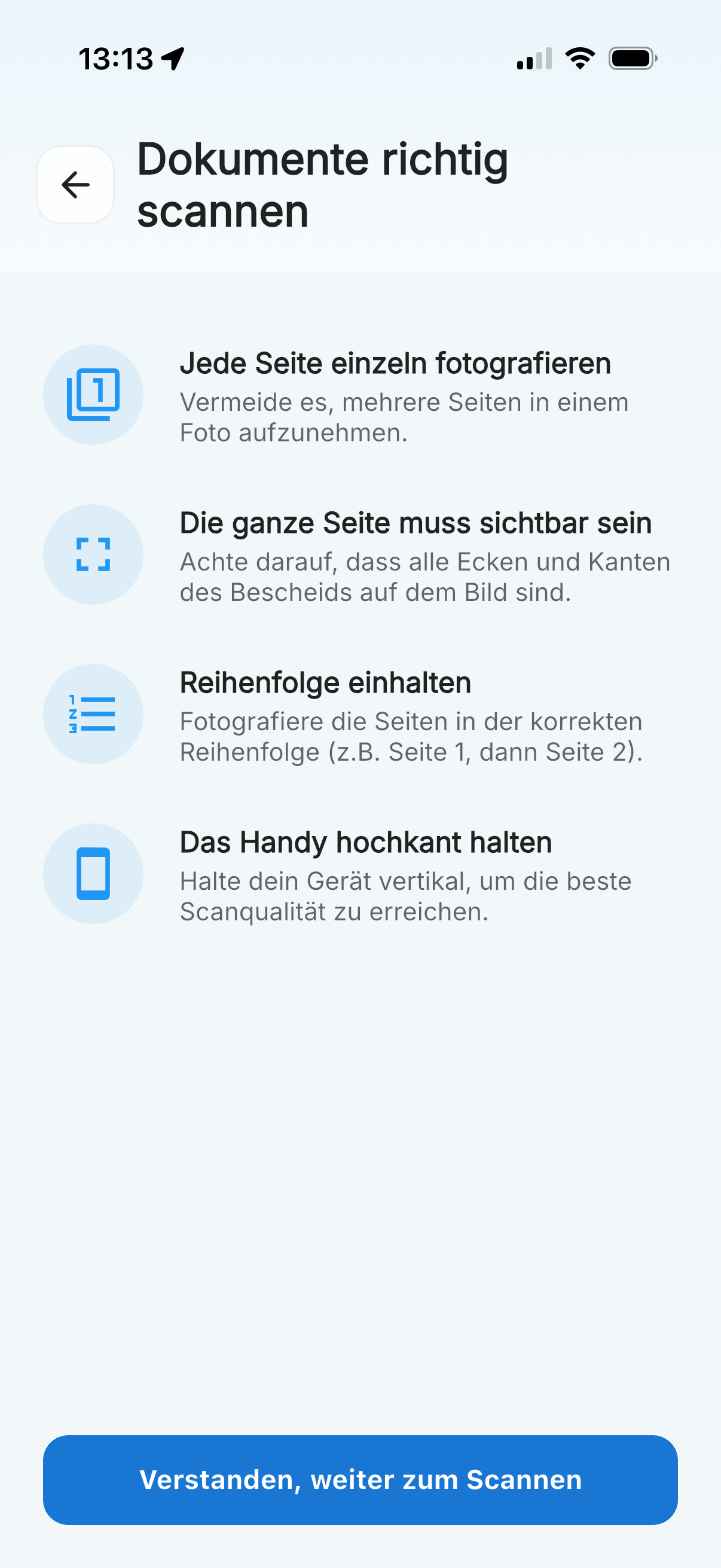
After scanning, check the documents and send the notification.
- Select
Accountin the bottom right corner. - Open the section
BuT-Bescheid/Sozialstaffel. - Tap on
Upload BuT notification. - Supplement the information from your existing notification, for example the notification’s identification number and the validity period.
- Select
Scan notificationto photograph or scan all relevant documents using the app. - Check that all pages of the notification have been fully and legibly recorded.
- Select
Submit.
If you have further cost coverages, please repeat the process for the children in question.
When uploading, please ensure that the entire document is visible and that the child’s correct name is clearly recognizable on the form. The name on the notification must match the respective customer account.
Especially when a BuT (Education and Participation) notice is uploaded for multiple children, it occasionally happens that the children’s names do not match the respective customer account. In this case, the notice cannot be approved. The notice must then be uploaded again, which delays the processing accordingly.
The identification number is the number of the BuT (Education and Participation) notification. This number is included on the form provided by the authorities. The reference number of the notification is described differently on the official forms. Terms such as “My reference”, “Our reference”, or “BG number” mean the same thing in this context and can be used synonymously.
First, log in to the web portal and then open your customer account.
- Open the section
My Customer Account. - Select
Education and Participation. - Select the child for whom you wish to make an entry.
- Supplement the information from your notification, for example the notification’s identification number and the validity period.
- Select
Next. - Upload the notification via
Select. - Check if the file has been uploaded completely.
Only one file can be uploaded at a time. If your document consists of multiple pages, please combine them into a single file before uploading. Repeat the process for other children if necessary.
The scanned document for the respective entry is attached via the Select button.

After you have entered the data, please upload the notification as a PDF or image. Only when the document is complete can it be reviewed and subsequently approved. Incomplete applications cannot be processed and therefore cannot be approved!
Your application will usually be reviewed within two working days after uploading.
We kindly ask you to refrain from sending notices by email, also for data protection reasons. as these cannot be automatically linked to your customer account and therefore cannot be edited directly.
Therefore, please preferably use the upload function in the app or web portal.